Microsoft 365: First Time Account Setup

1. Login
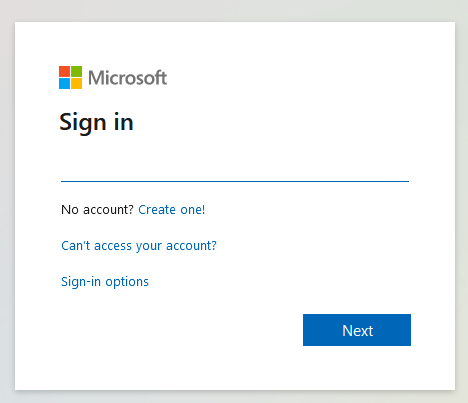
Log in to portal.office.com using your email address and temporary password, which you should have received in a separate email. We recommend that you complete this initial login on a desktop or laptop PC, but keep your phone at hand because you’ll need it for a future step.
If you haven’t received your temporary password or it isn’t working, we can reset it for you upon your request.
2. Update Password
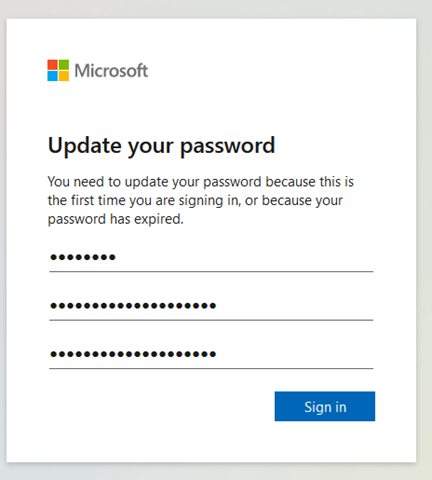
Microsoft will prompt you to change your password – set it to something secure that you’ll remember.
3. Set Up MFA
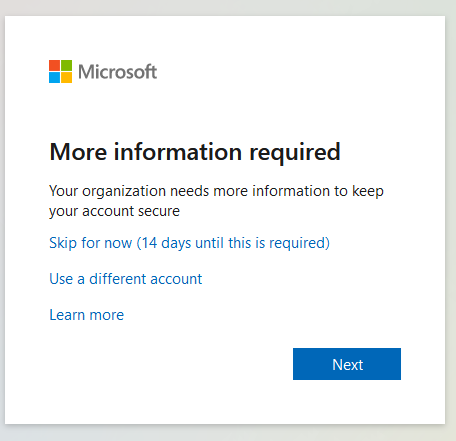
Microsoft will then prompt you to set up multiple-factor authentication (MFA) – hit next and follow the steps to set up the Microsoft Authenticator app.
4. Download the App
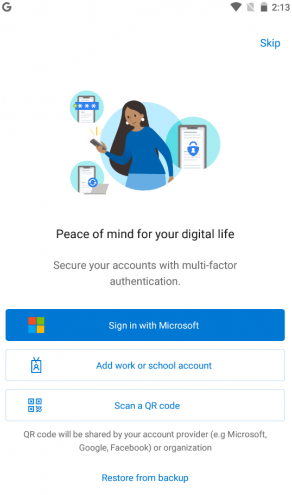
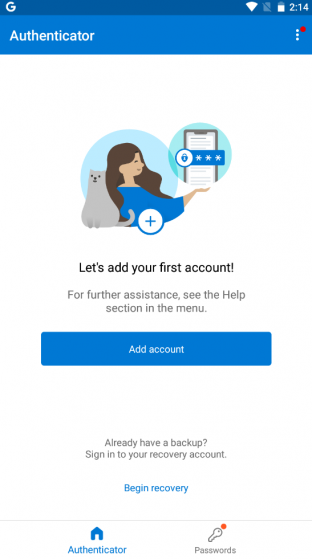
Download the app, open it, and allow notifications if prompted. If it’s your first time launching the app, you will usually see a screen with the option to ‘Scan a QR code’: select that. If you don’t see that screen, select ‘Add account’, either from the button in the center of the screen, or from the three-dot menu in the upper right. Select ‘Work or school account’ on the next screen and choose ‘Scan a QR code’.
Your phone’s camera will open: point it at the QR code in your browser on your PC (if you don’t see the code yet, click through the steps in your browser with the ‘Next’ button until the QR code is displayed).
5. Scan QR Code
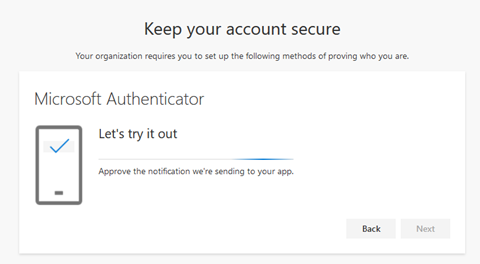
Once pointed at the QR code, your phone should scan it automatically and display ‘Account added successfully’. At this point you should see a Sumivector account in the list in your Microsoft Authenticator app. Back in your browser, click ‘Next’ and Microsoft will send a test authentication notification to your device through the app.
6. Approve Access
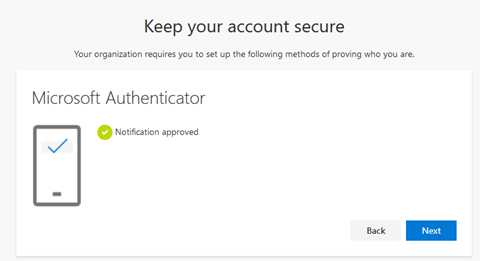
Tap ‘Approve’ on the pop-up notification on your phone, and you should see the message ‘Notification Approved’ in the browser on your PC.
7. Finish App Setup
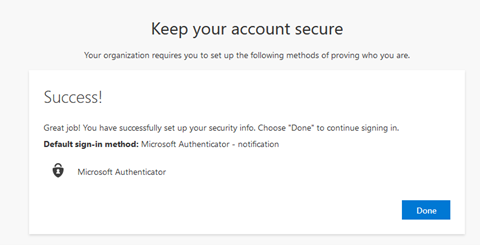
Hit ‘Next’, and then ‘Done’, in the browser: your password and Authenticator app are now set up.
8. Setup Recovery Methods
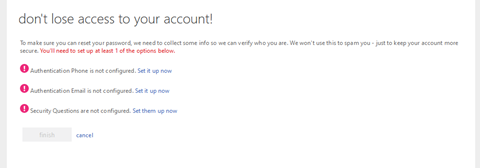
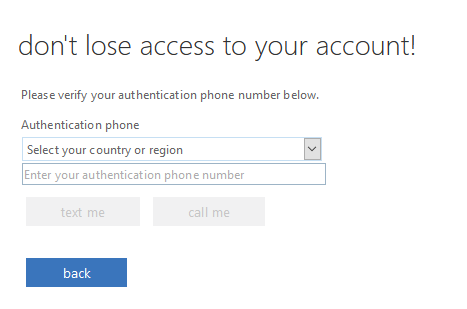
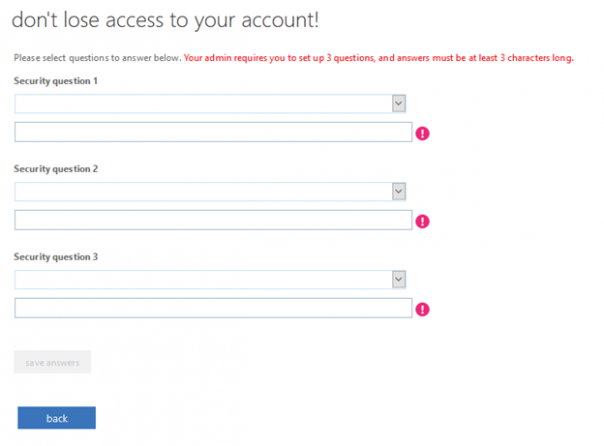
Proceed to log in with the new password and approve the login attempt through the app (you won’t have to approve your login every time; only the first time you log in to a particular device). At this point, Microsoft will prompt you to set up at least one required recovery method, in case you lose access to your account and need to reset your password. To set up one or more of these methods, click ‘set it up now’, enter your phone/email, and copy in the code they send to you (or simply choose your security questions and answers). Once you’ve set up your desired recovery methods, click ‘finish’.
Your account is now properly initialized and secured. If there are any issues with the above steps, please let us know. We can reset your password and restart the setup process if needed.